✍️
Activate/Deactivate Purchase Events
Activating:
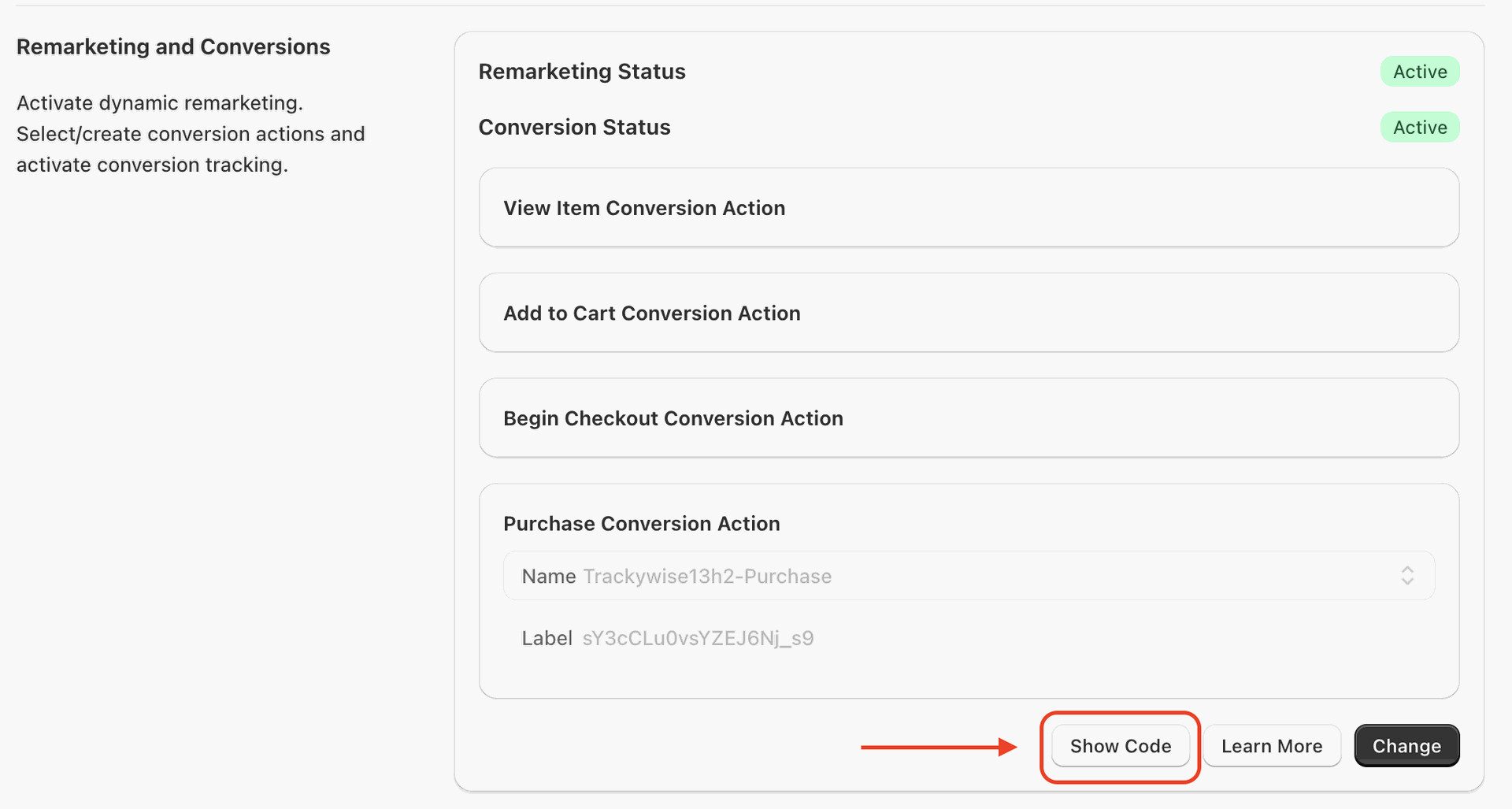
- Go to Trackywise Analytics app, Google Ads page. Then find and click Show Code button. Please note that this button will be visible after you activate the purchase conversion action.
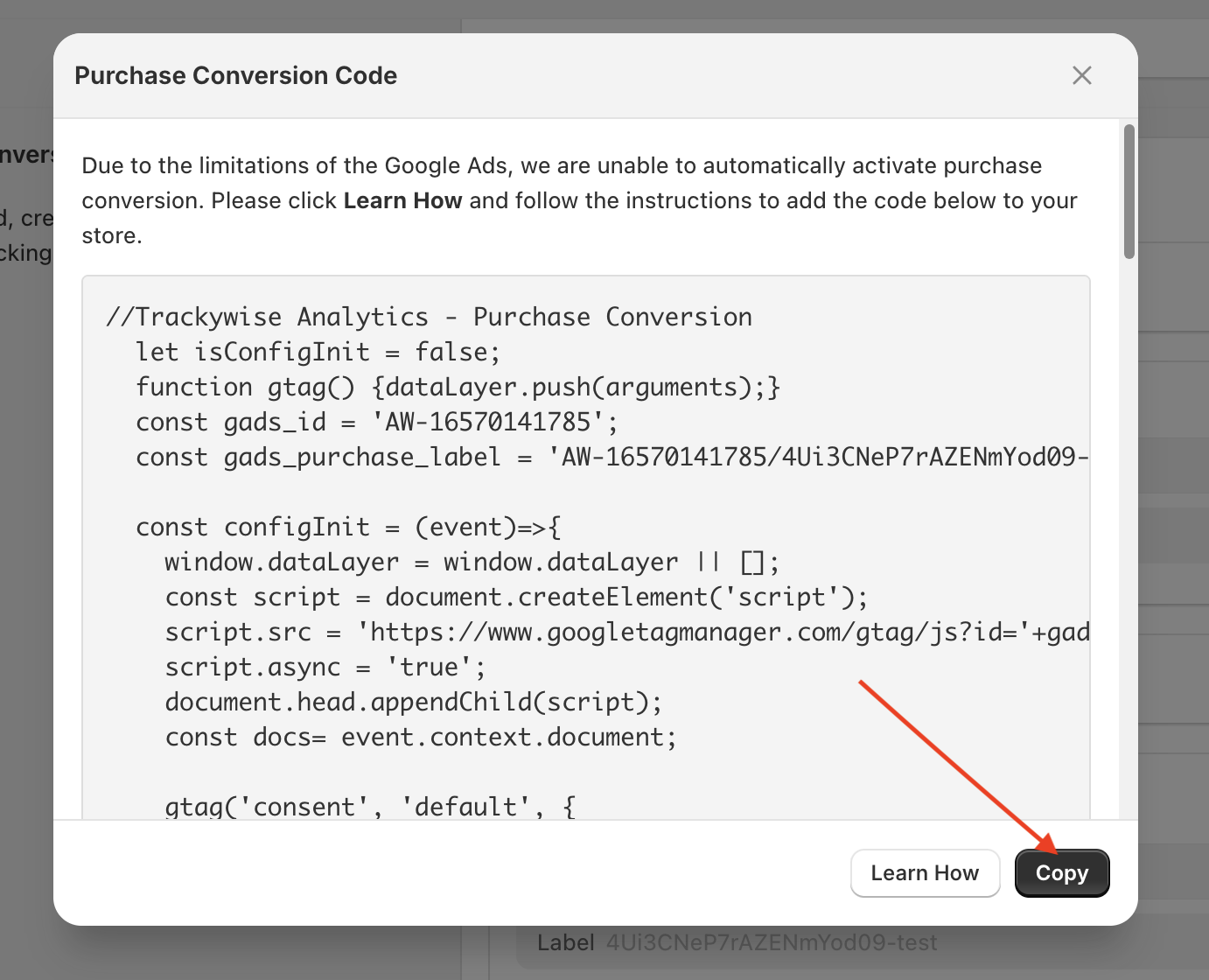
- Copy the code by clicking Copy button.
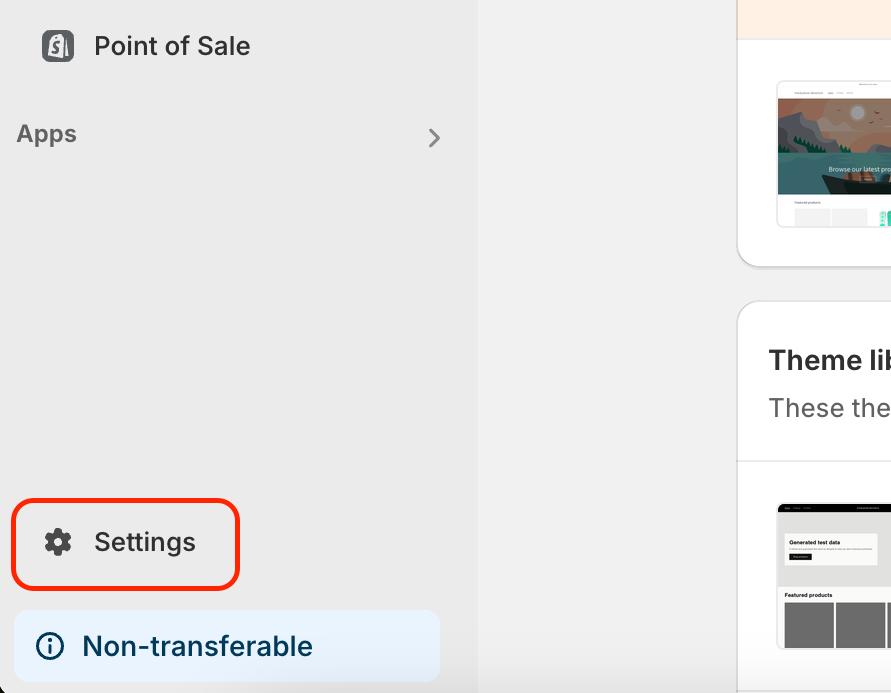
- Click Settings on the Shopify admin panel at bottom left.
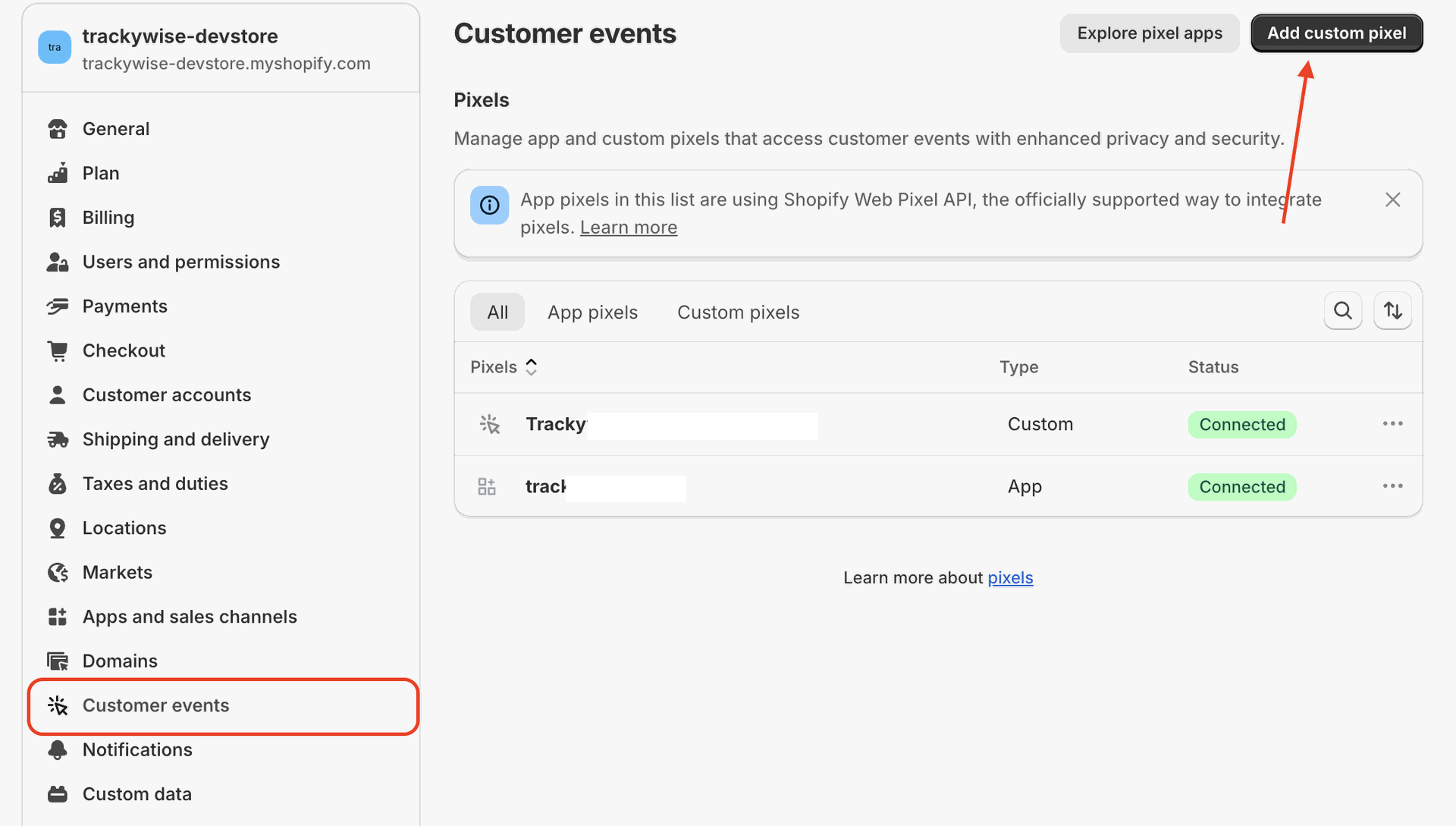
- Click Customer events, then click Add custom pixel.
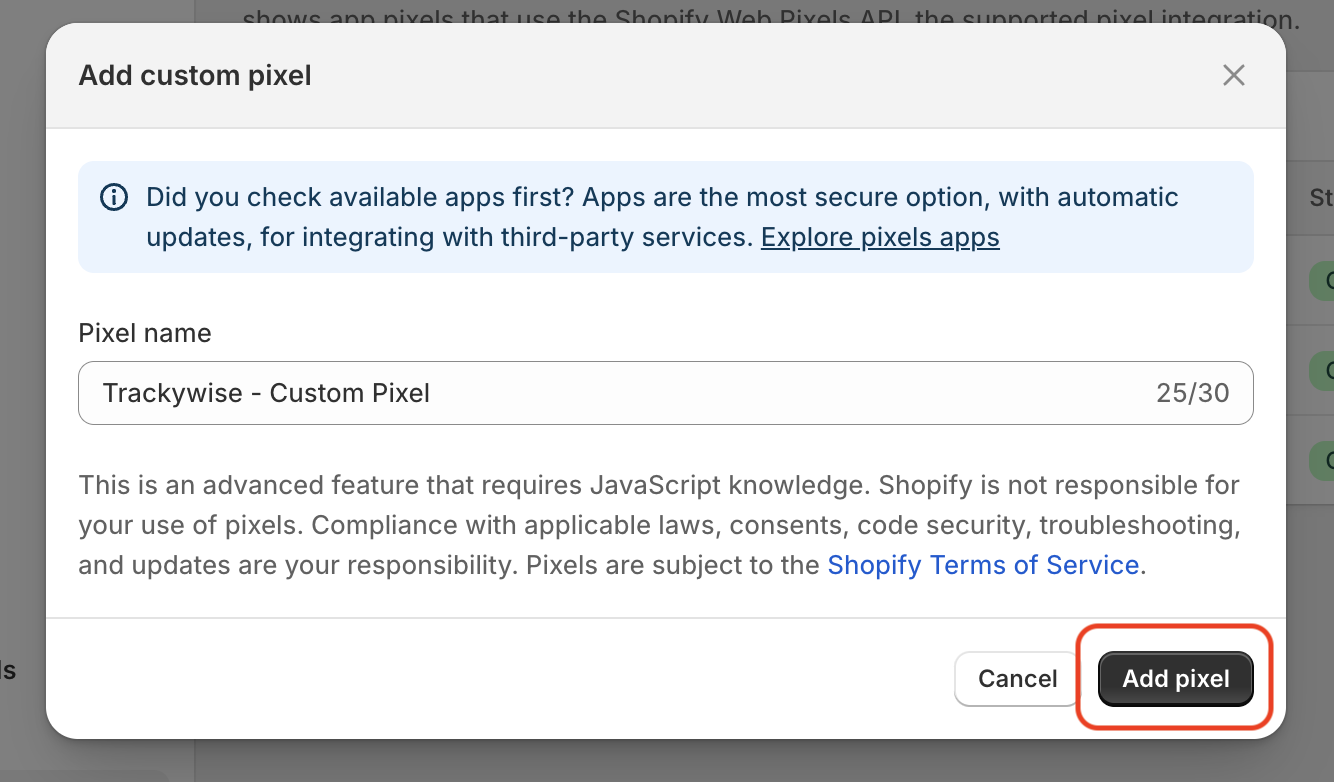
- Enter a name for the pixel and click Add pixel.
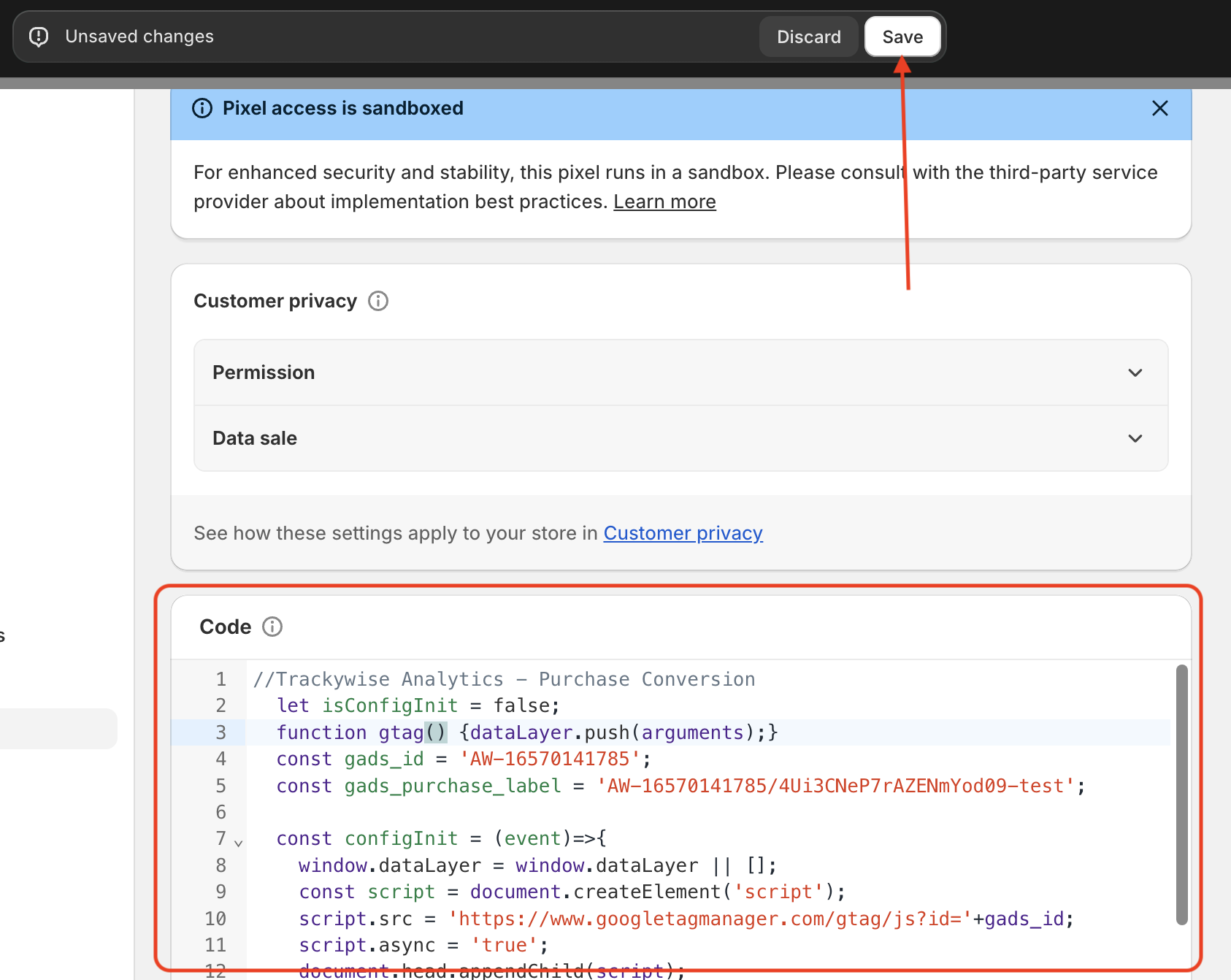
- Paste the code in the Code section and click Save.
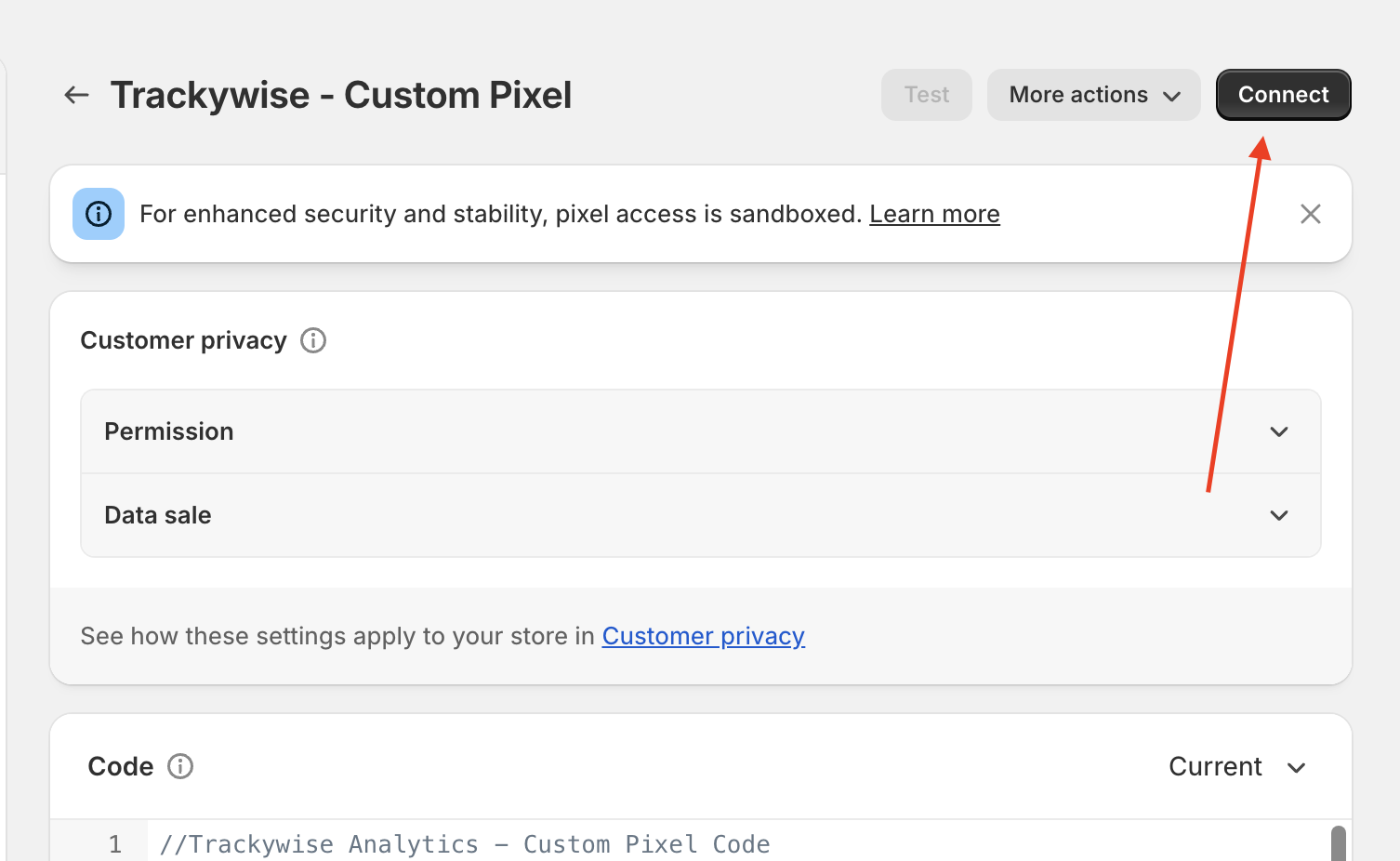
- After saving the code, click Connect button to activate the pixel.
Deactivating:
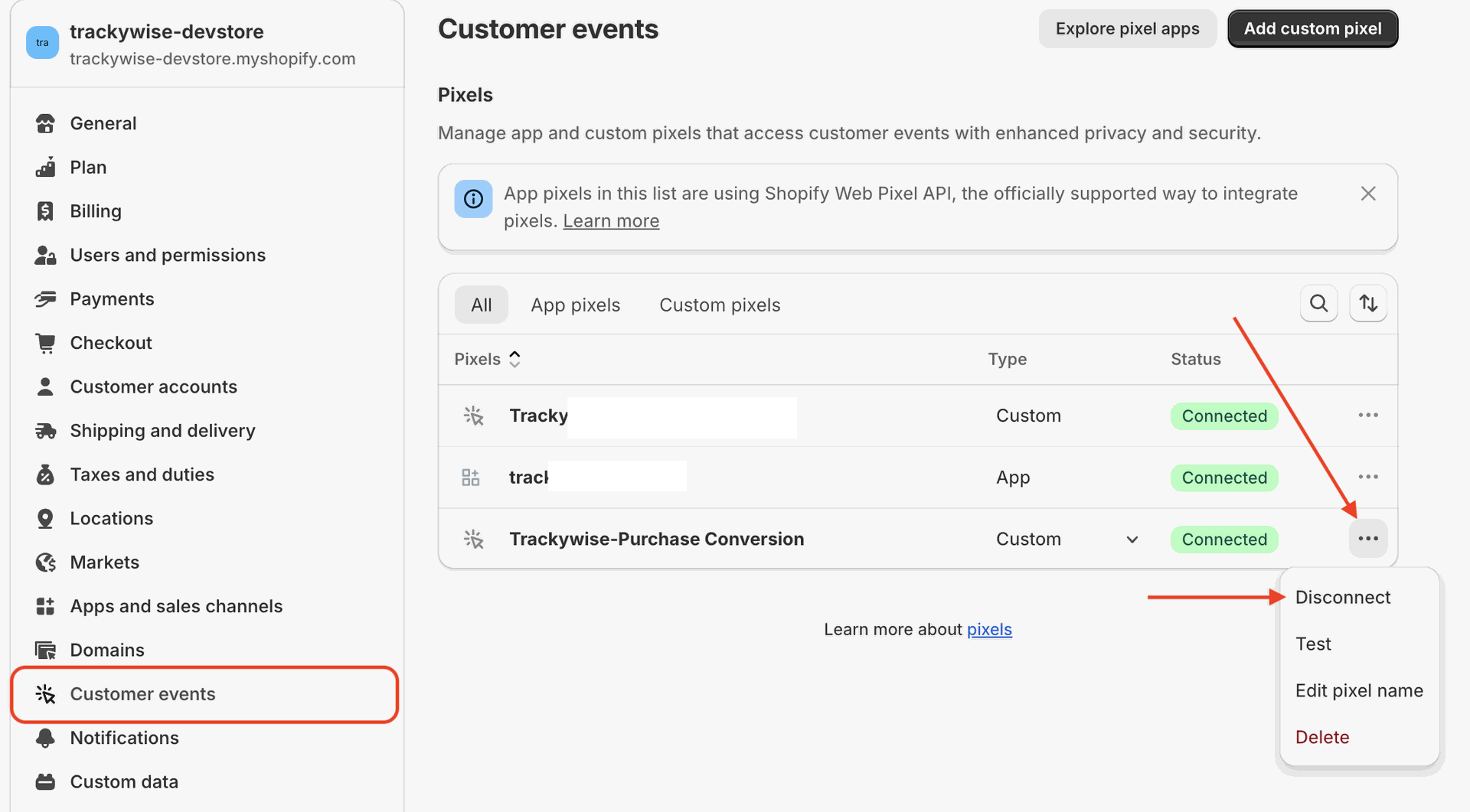
- Log in to your Shopify store. Go to Settings>Customer Events. Click on the 3 dots inline with the pixel you added in the activation phase. Then click Disconnect.